The chat widget sets a cookie so it can keep your conversation. With your consent we also measure site
traffic. Read the
privacy policy
or
cookie policy.
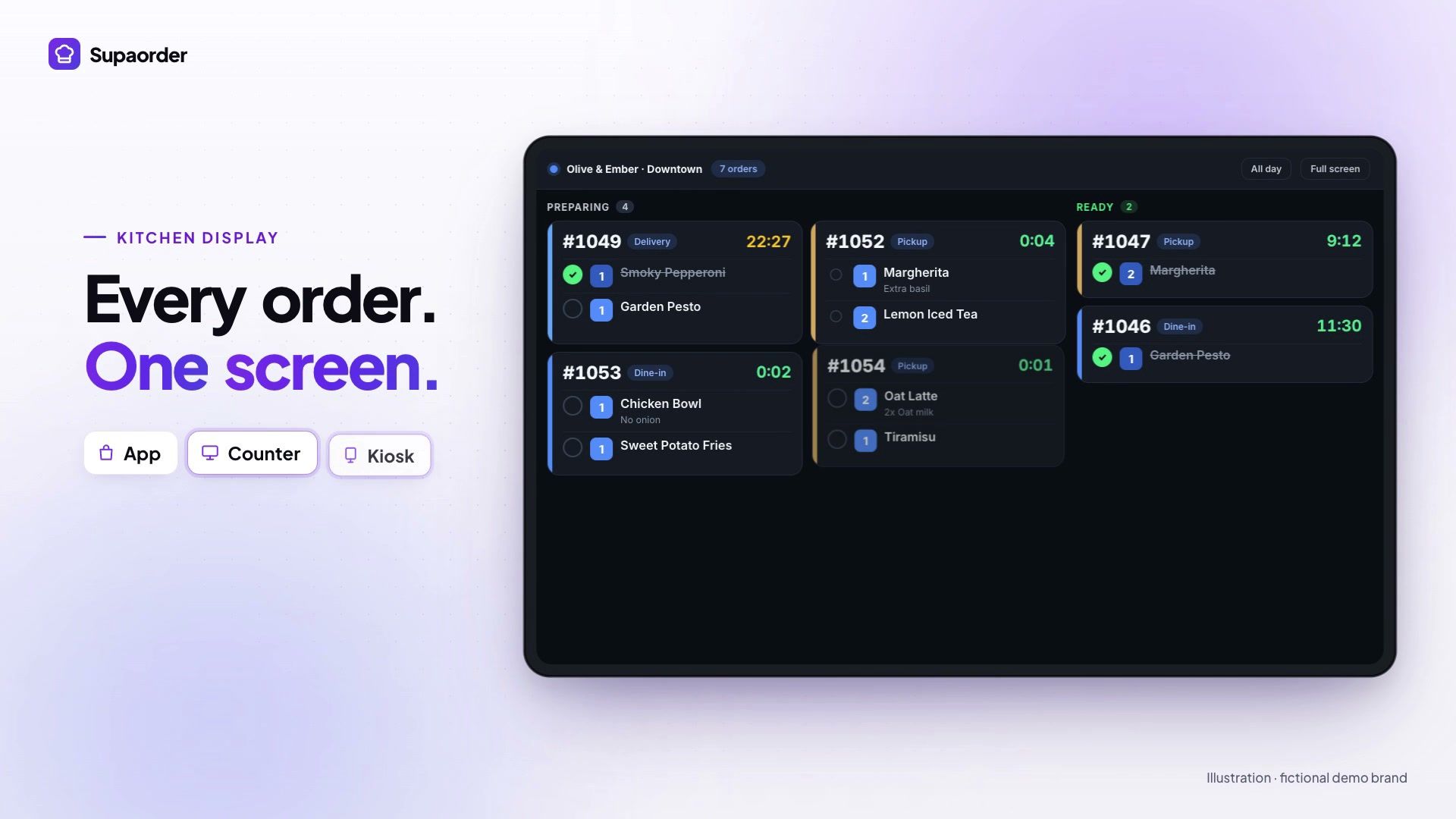
Orders from your app, website, kiosk, register and tables arrive as cards in two lanes. Cooks check items off as they are made, each screen shows its own station’s work, and the order moves on when everything is done.
A kitchen display system (KDS) is a screen in the kitchen that
shows orders as they arrive and tracks what has been made, in place of printed tickets on a rail.
Supaorder’s kitchen display is included in every plan as part of the in-store suite. It is paired to an outlet
with a single-use device code from the dashboard, and it is on by default once paired. Every order the outlet
takes reaches it, whichever channel the order came from.
Every part of the board below is in the product today and described in the kitchen display documentation.
Two lanes: Preparing and Ready
That is the whole board, deliberately. The kitchen moves an order to Ready, bumps it back to Preparing if something was missed, and completes pickup and dine-in orders. Delivery orders are completed by the driver or the partner app, so the kitchen is not offered that action.
Per-item check-off, shared
Each item on a ticket is checked off on its own, and the state is shared across every screen in the kitchen, so two stations working one ticket see each other’s progress. Checking off the last item moves the order to Ready.
Colours against your prep time
Cards stay green inside the outlet’s prep time, turn to a warning colour past it, and pulse at one and a half times. Nobody has to read a timestamp to see which ticket is slipping.
Order type at a glance
A colour strip on each card marks delivery, pickup, dine-in or kerbside, so a station can tell what is going in a bag and what is going on a plate.
The all-day summary
One key shows a running total of everything still to make across the Preparing lane, with checked-off items already deducted — so a cook can batch by item in a rush instead of working ticket by ticket.
A chime, and an optional escalation
A chime on every new ticket, so nobody has to watch the screen, and an overdue chime — off by default — that stops as soon as someone opens the ticket or checks off an item.
Kitchen stations
Each screen shows
its own station’s work
A grill screen shows grill work and a cold station shows salads. An expo screen sees everything.
Set up once per outlet. Each station has a name and the categories
or items it makes. A station with nothing selected is a catch-all. Each kitchen display picks its station in its
device settings, and the screen shows the choice read-only — a filter changed mid-service by whoever was nearest
is how tickets go missing.
Printers follow the same stations. Kitchen printers on the POS
register and the partner app are assigned to stations the same way, so each printer prints only its own lines. If
a printer’s station cannot be found, it prints the whole ticket rather than drop a dish.
Done marks only what a screen can see. On a station screen, checking
off a ticket marks only that station’s items; the order goes Ready when the stations between them have covered everything.
Each check-off is stamped with its station, so prep time per station appears in the
Kitchen Station Reports.
How it fits
Every channel,
one kitchen
Orders from your branded app and website, the self-order kiosk, the register and QR table ordering all reach the same board. On table service, each fired round arrives under its own course divider, so the kitchen
sees the starters and the mains as separate rounds of one table.
If your counter runs Clover, Square or Toast rather than our register, the POS integration page sets out what syncs in each direction. The kitchen display is part of the platform either way.
If the outlet’s network drops, the screen keeps the last known tickets and reconnects on its own. The full
behaviour, including the keyboard map and troubleshooting, is in the
kitchen display documentation.
FAQ
Kitchen display,
answered
Is the kitchen display included in the plan?
Yes. The kitchen display is part of the in-store suite, included in every Supaorder plan with the POS register, self-order kiosk and loyalty tablet. You pay per location, and the screen is hardware you buy yourself.
How do kitchen stations work?
You set stations up once per outlet in the dashboard — a name, and the categories or items that station makes. A station with nothing selected is a catch-all, which is what an expo screen wants. Each kitchen display then picks its station in its device settings, and the choice is shown read-only on the screen, so a filter cannot be changed mid-service by whoever is nearest. Kitchen printers on the register and the partner app are assigned to stations the same way.
What happens if a kitchen printer’s station cannot be found?
It prints the whole ticket rather than dropping a dish. Over-printing is recoverable on the pass; a dish nobody was told to make is not.
Can the kitchen display print tickets?
Yes — kitchen tickets only, never receipts, with one printer per screen. The print trigger is off by default so a newly paired screen does not spool paper before its printer is set up; set it to print on arrival or on completion once it is. Tickets can be reprinted from an expanded card.
Can I run the board without touching the screen?
Yes. The whole board runs from a keyboard: arrows to move, number keys to check off items, and single keys for done, bump back, complete, the all-day summary and help. Kitchens usually use a small macro pad, which is faster with wet hands than a touchscreen.
Can staff cancel an order from the kitchen display?
No, by design. Kitchens do not cancel orders; that happens in the partner app or the dashboard. A screen also belongs to one outlet, with no outlet switcher.
In-store suite
The Counter,
the Kitchen and the Floor
POS register, kitchen display, self-order kiosk, table service and two-way sync with Clover, Square and Toast, in one minute.
Every product screen in this video is a hand-built illustration of a fictional demo brand with illustrative data — not a screenshot of a live account.
Watch on YouTube (opens in a new tab)
The rest of the counter, the kitchen and the floor
Get your own branded ordering platform with zero platform commission. Confirm your setup requirements,
subscription terms and launch schedule in a demo.